Blog · July 20, 2026
New hire, expo tomorrow: business cards designed and print-ready in one sitting
A Dayton commercial roofing crew hired a senior estimator two days before a regional builders' expo. Here is how they set up a scannable profile, styled a branded QR, and shipped a print-ready business card in a single afternoon using SkyCanvas.
Marisol Vega runs Ironleaf Commercial Roofing out of a converted machine shop in Dayton, Ohio. Her crew keeps the client list small on purpose: warehouses, schools, mid-size office parks, and the kind of property managers who want a partner rather than a salesperson.
Last Tuesday she hired Derek Alcott as her new senior estimator. On Wednesday morning she remembered the Midwest Builders Expo was Friday. Derek had nowhere to send a lead, no cards, and no photo on the website yet.
They had one afternoon. This is what they did with it, start to finish, inside SkyCanvas.
1. Set up a public profile for the company
Before making anything printable, Marisol filled out the Ironleaf profile. This is the page a QR scan eventually lands on, so it needed to sound like the company and not like a template.
She typed in the tagline “Flat roofs, sharp work, straight answers.”, the service list (TPO and EPDM installation, roof inspections, leak repair, preventative maintenance), and a short bio noting that Ironleaf serves property managers, general contractors, and facilities directors across the Midwest.
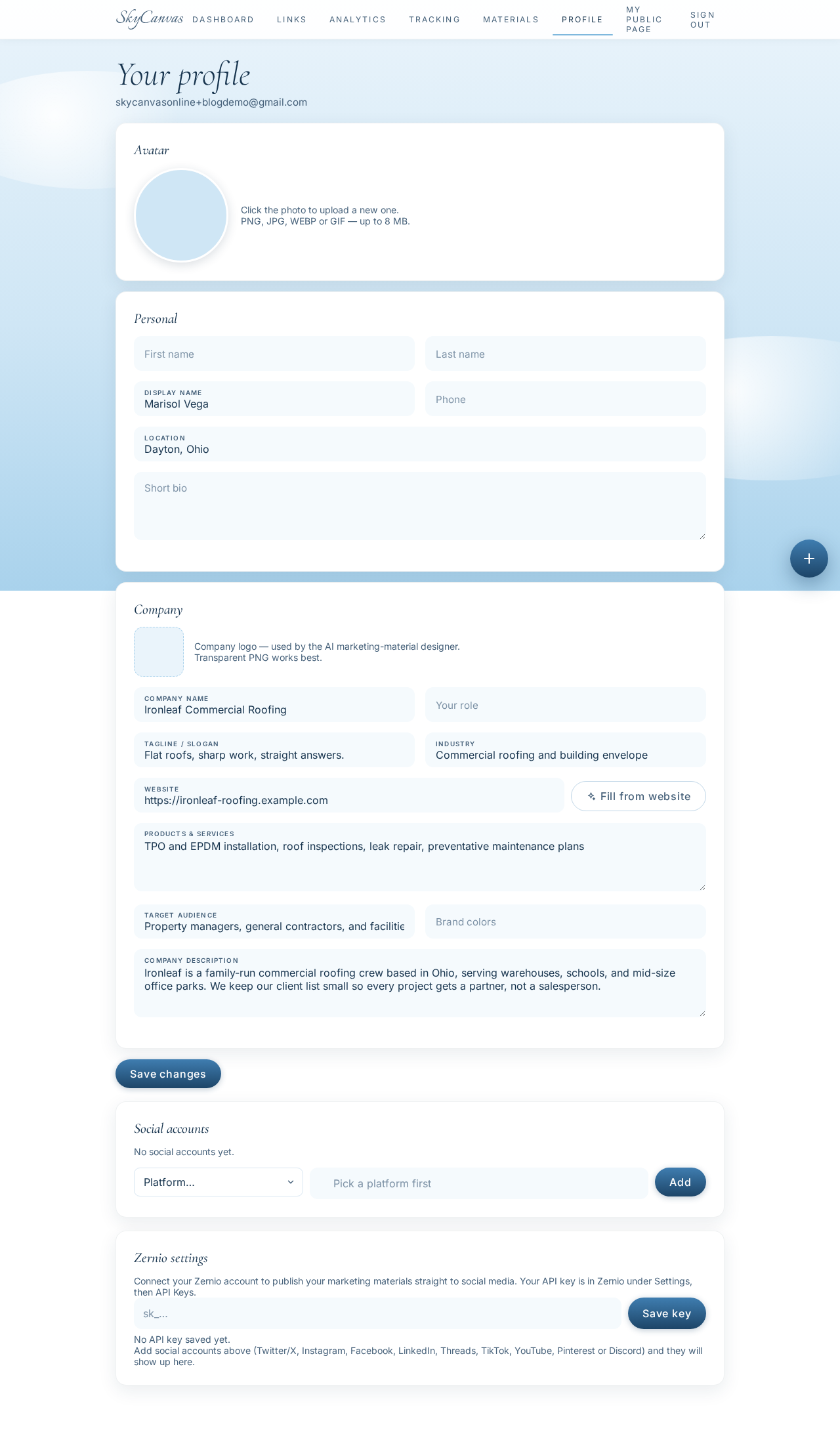
Two minutes of typing, and suddenly there was a real business to point people at. Everything downstream, the short link, the QR, the card, would inherit this tone.
2. Create a short link pointed at Derek’s team page
Ironleaf already had a bio page for Derek on their site at a long, ugly URL. Nobody was going to type that off a card.
In the Links section, Marisol clicked new short link and pasted the destination. She titled it “Derek Alcott, Senior Estimator at Ironleaf”, wrote a one-line description about a direct number and site-visit request, and set the custom slug to derek-ironleaf. On the right side of the form, the QR preview updated live as she typed.
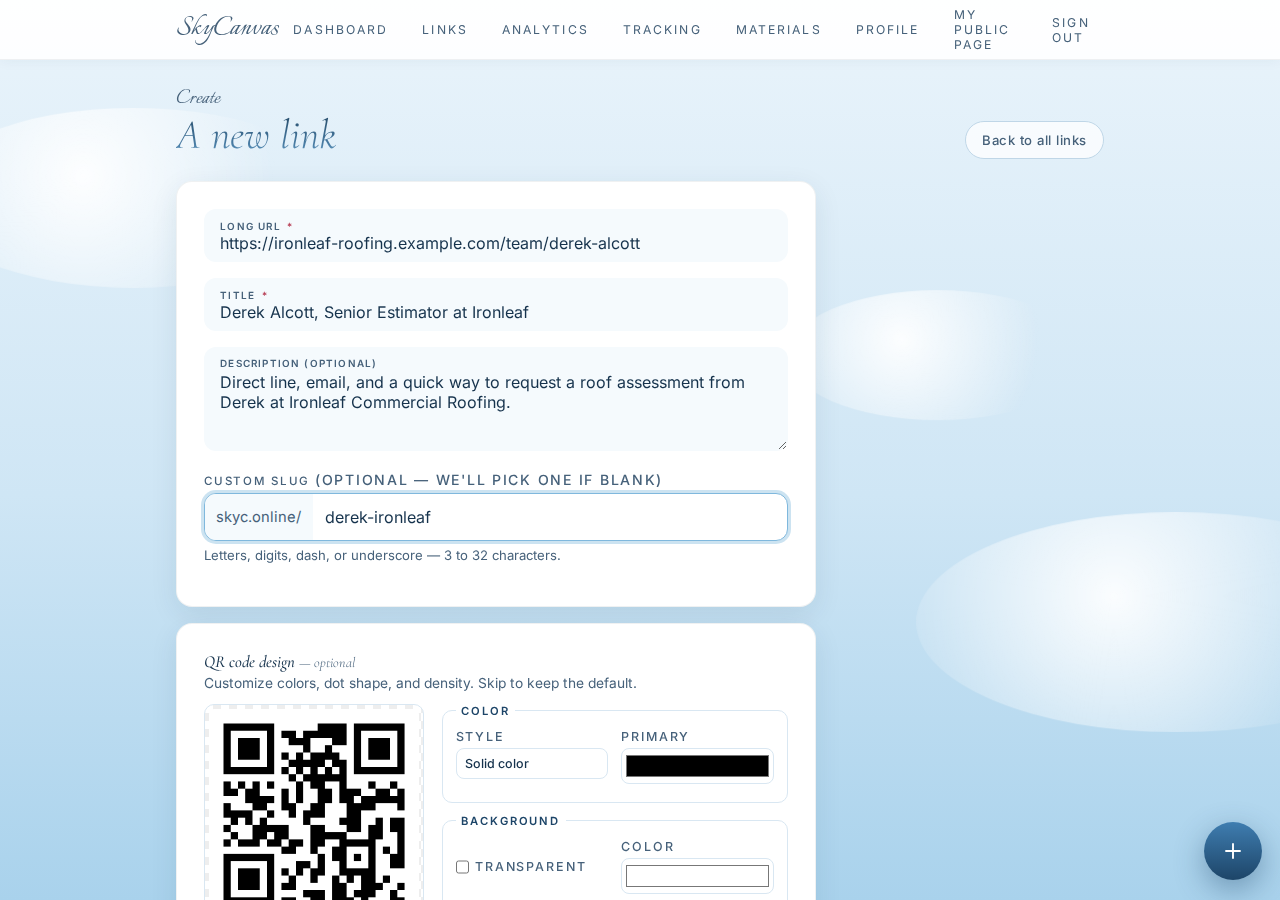
The finished short URL was skyc.online/derek-ironleaf. Short enough to read out loud, short enough to remember, and pointed at a real page Derek controls.
3. Review the link and grab the ready-to-use QR
After saving, SkyCanvas dropped her on the link detail page. The short URL was there, the destination was there, and a black-and-white QR was already generated and downloadable.
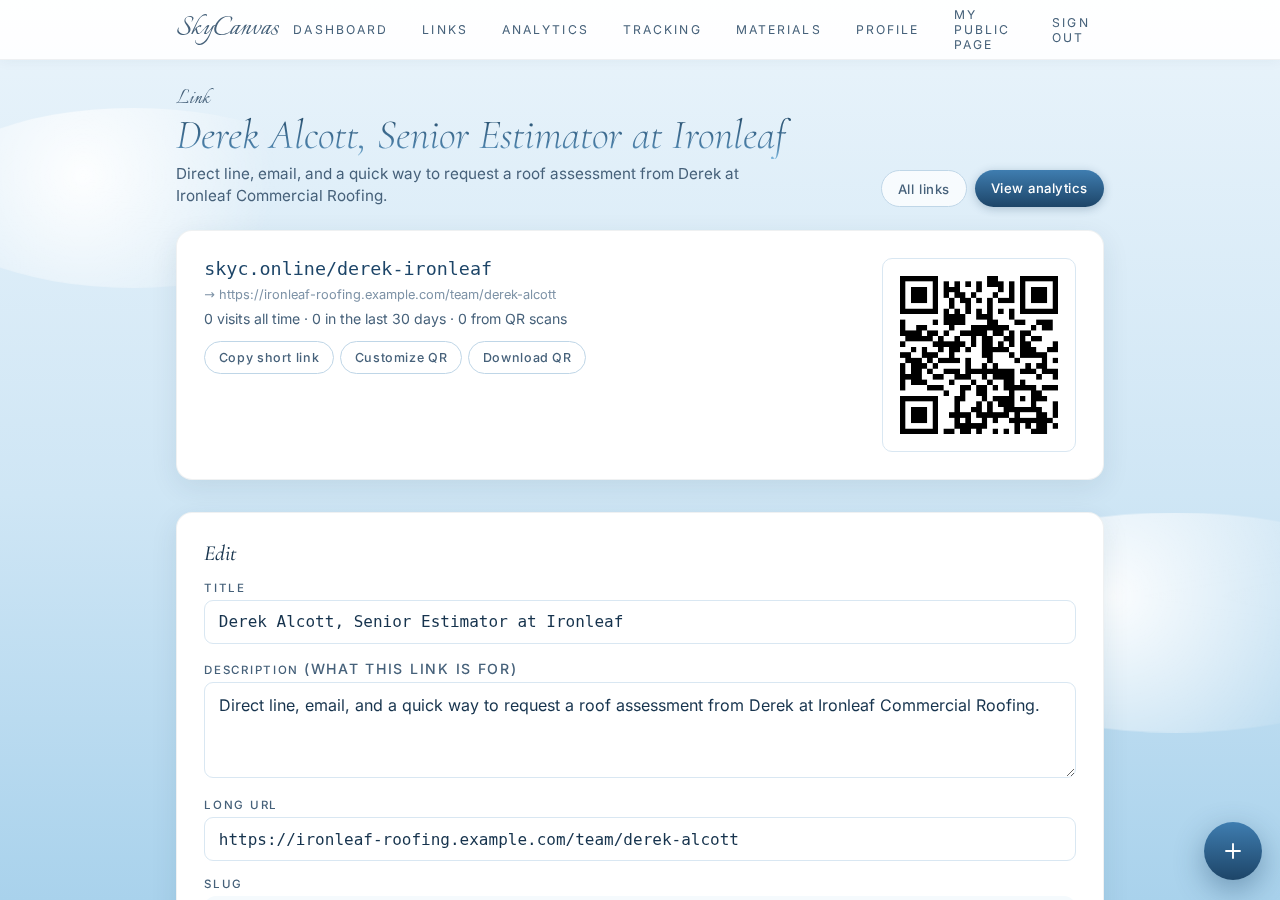
For a lot of small jobs, this default QR is enough. Print it, tape it, done. But this was a business card that had to sit next to cards from larger competitors at a booth, so Marisol wanted the QR itself to feel like the brand.
4. Restyle the QR in Ironleaf colors
She opened the QR customization panel on the same link page and picked her brand colors: a deep forest green (#0F3B2E) as the primary, copper (#C46A2A) as the secondary, and pure white behind it all. The preview updated instantly, showing a gradient QR that read cleanly at every scan-distance test she tried.
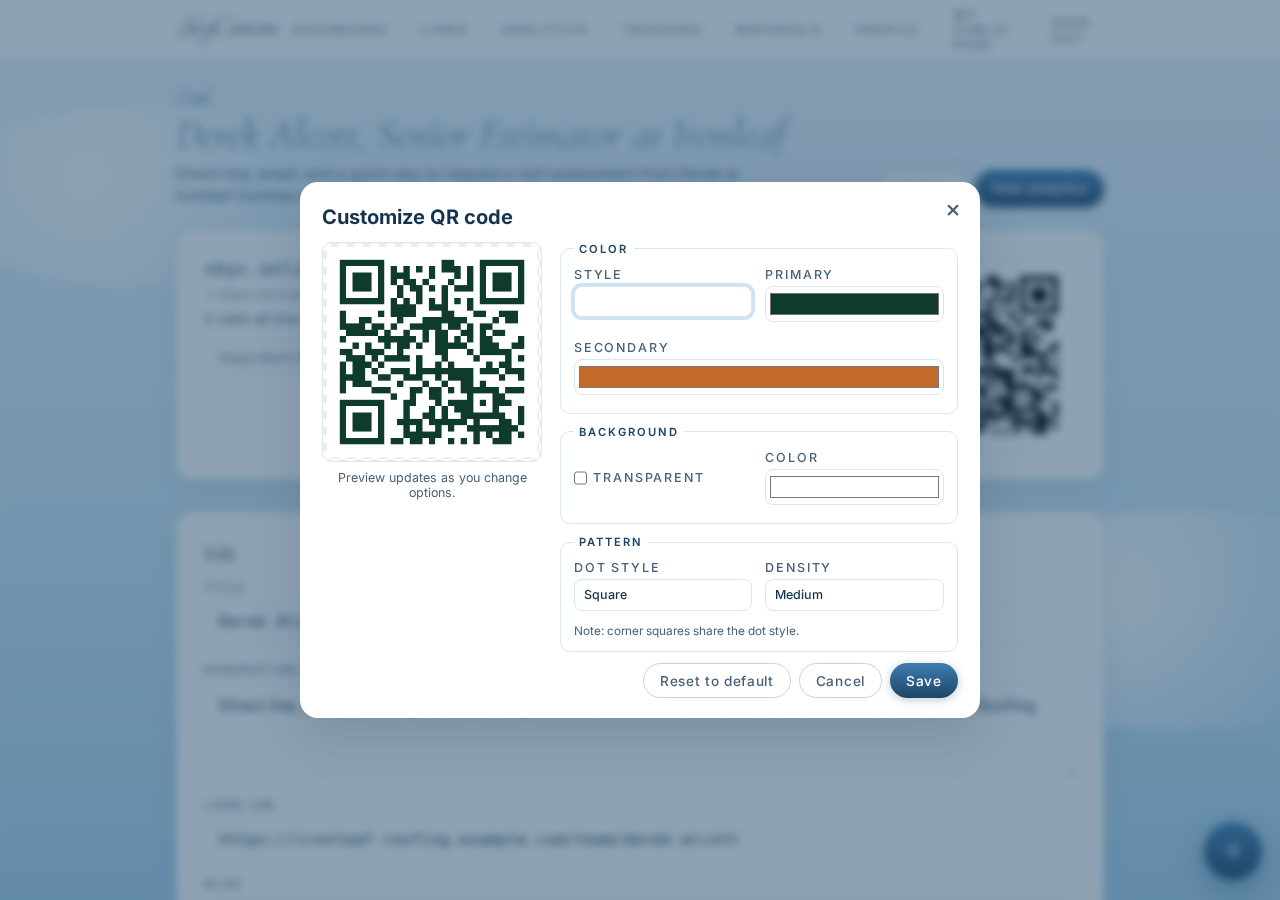
Same scan target, same short link, but now it looked like it belonged to a roofing company that actually cared how things looked on a roof.
5. Start a new design at business-card size
In My Designs, she clicked New Design. She named it “Derek Alcott business card, Ironleaf Roofing” and set a custom canvas size of 1050 by 600 pixels, roughly a standard 3.5 by 2 inch card at print resolution. Crucially, she selected the derek-ironleaf short link right there in the form, which tells SkyCanvas to bring that branded QR onto the canvas automatically.
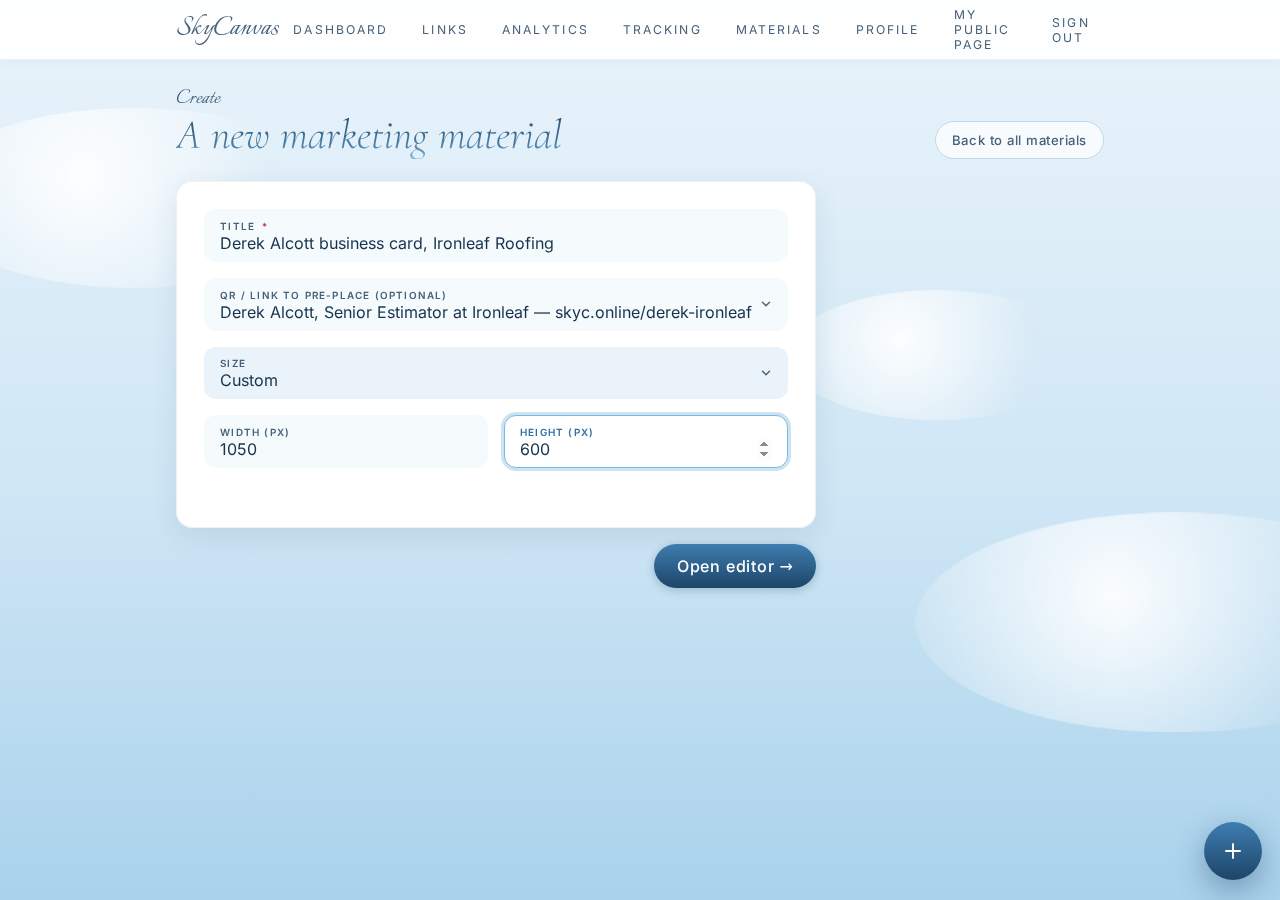
No copy-pasting QR images, no worrying about the wrong short URL under it. The link and its styled QR come with the design.
6. Open the editor and pick the design path
The design opened in the SkyCanvas editor: a blank canvas at the right dimensions, the drawing tools down the left rail, and a layers panel on the right. At the top of the toolbar, a “Design with AI” button.
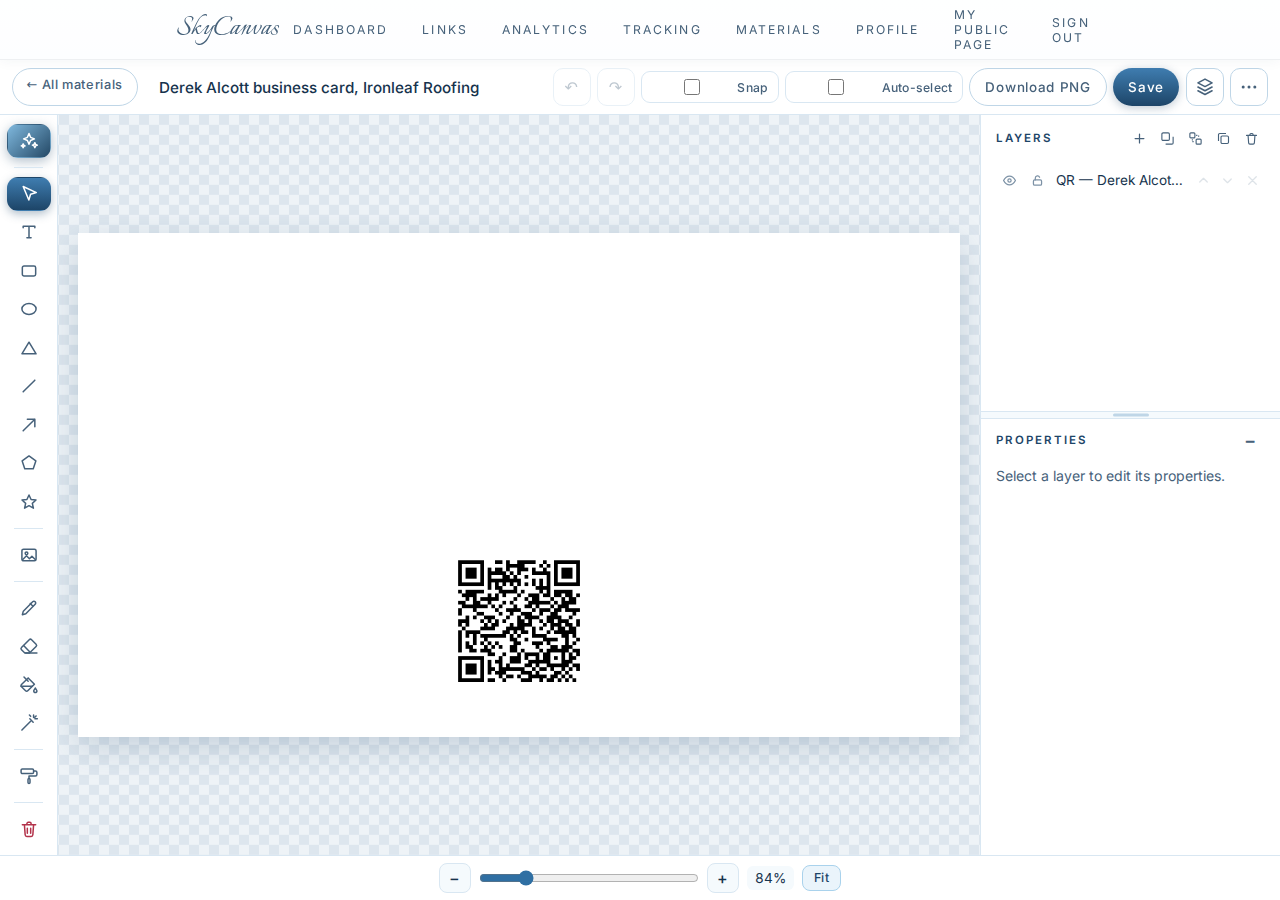
Marisol can absolutely design cards by hand in here. But it was already 2 pm, Derek needed to leave for the printer by 5, and she had a very clear picture in her head. That is exactly the moment the AI shortcut earns its keep.
7. Write the brief in plain English
She clicked Design with AI and typed the card the way she would describe it to a designer over the phone. Deep forest green background with a subtle photographic texture of a standing-seam metal roof at golden hour. Wordmark top left in off-white serif. Name in large white sans-serif. Copper subtitle underneath reading “Senior Estimator”. Phone, email and website in small clean white type lower-left. Big scannable QR on the right third with a tiny copper caption above it: “Scan for direct line and site-visit request”. Feel: senior tradesperson, trustworthy, not flashy.
She picked “Real photo” as the background mode so the roof texture would be photographic, not illustrated.
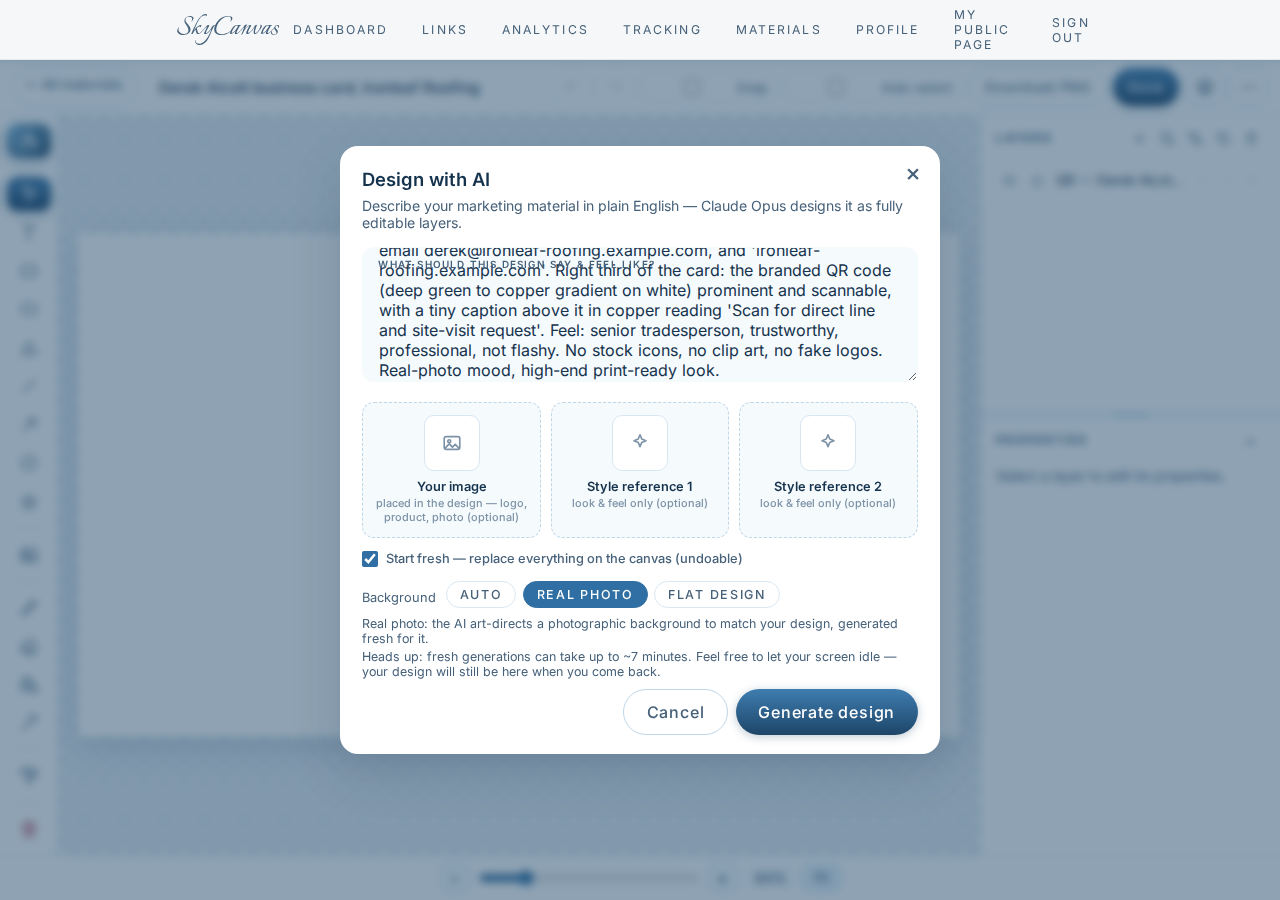
Then she hit generate and refilled her coffee.
8. The finished card, still fully editable
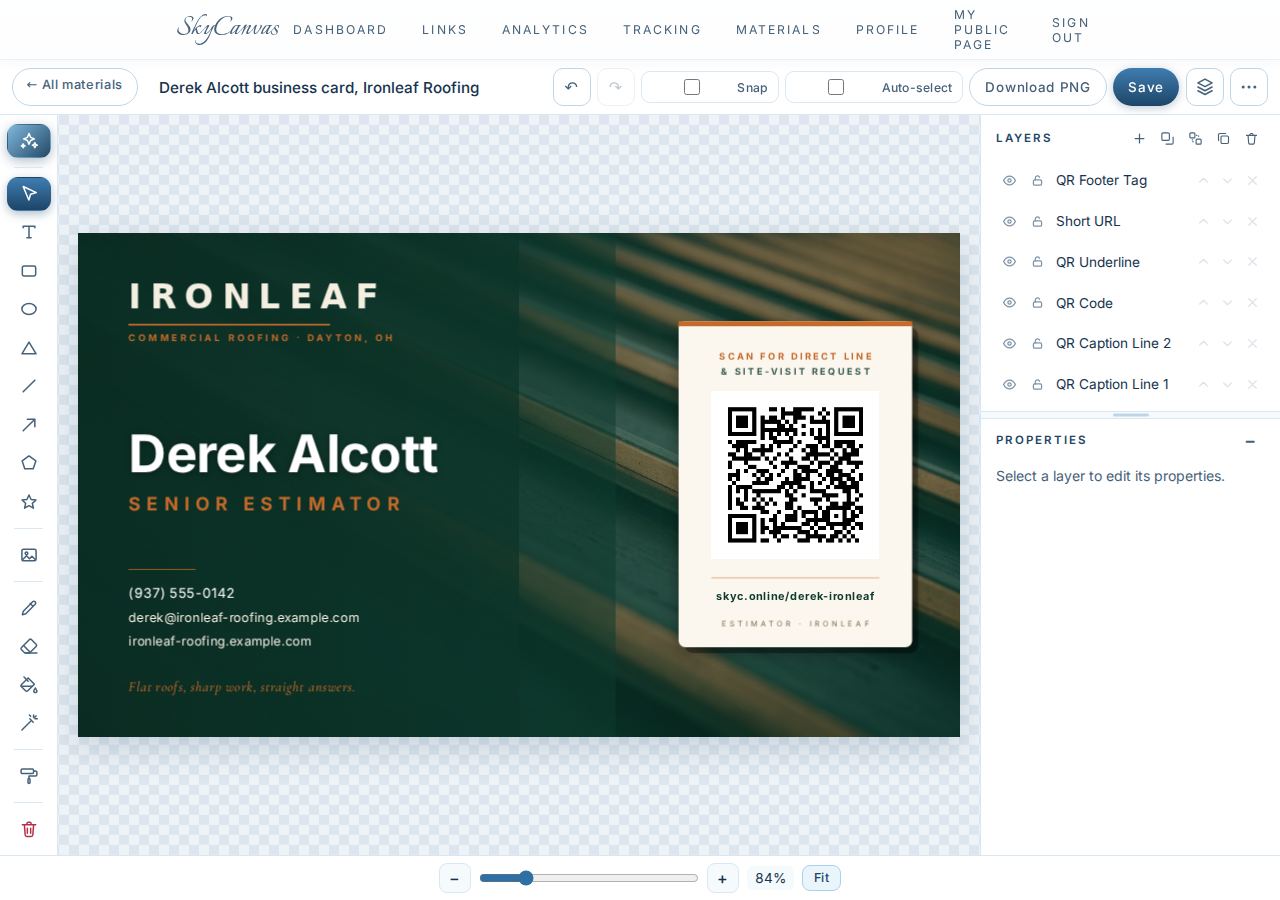
By the time she was back at her desk, the card was on the canvas. Deep green background with warm light catching the ridges of a standing-seam roof, exactly like she asked. The IRONLEAF wordmark sat top left in off-white with a thin copper rule and “COMMERCIAL ROOFING · DAYTON, OH” underneath. Derek’s name filled the center-left in confident white sans-serif, with “SENIOR ESTIMATOR” in copper below it. Phone, email and website stacked neatly, and the tagline “Flat roofs, sharp work, straight answers.” sat quietly at the bottom in italic copper.
On the right, the branded QR sat on a clean white card with the copper caption “SCAN FOR DIRECT LINE & SITE-VISIT REQUEST” above and skyc.online/derek-ironleaf printed underneath. Every element showed up in the layers panel on the right as an ordinary editable layer: QR Footer Tag, Short URL, QR Underline, QR Code, QR Caption Line 2, QR Caption Line 1.

Marisol nudged the phone number up two pixels because that is what she always does, hit Download PNG, and sent it to the local print shop. Cards were ready by 4:45.
What actually changed for Ironleaf
Derek walked into the Midwest Builders Expo Friday morning with 250 real cards in his pocket. Every scan hit a short URL Ironleaf owns and can update later without reprinting anything. The QR pulls Ironleaf’s brand colors, the card looks like a company twice their size made it, and Marisol never opened another design tool.
Total afternoon spend: one profile, one short link, one restyled QR, one AI-designed card. About ninety minutes end to end, most of it waiting for the print shop.
If you have your own version of this fire drill coming up, a new hire, a booth, a pop-up, a Saturday market, you can do the same walkthrough tonight. Create a free SkyCanvas account and try it with your own link.
Ironleaf Commercial Roofing is a fictional business we created to show a real SkyCanvas workflow. Every screenshot is real, captured live while writing this guide.